Barcode scanning and label printing
Any scanner works out of the box, and anything without a barcode gets one you print yourself.
Free download for Windows · version 2.1.12 · 33 MB · works offline
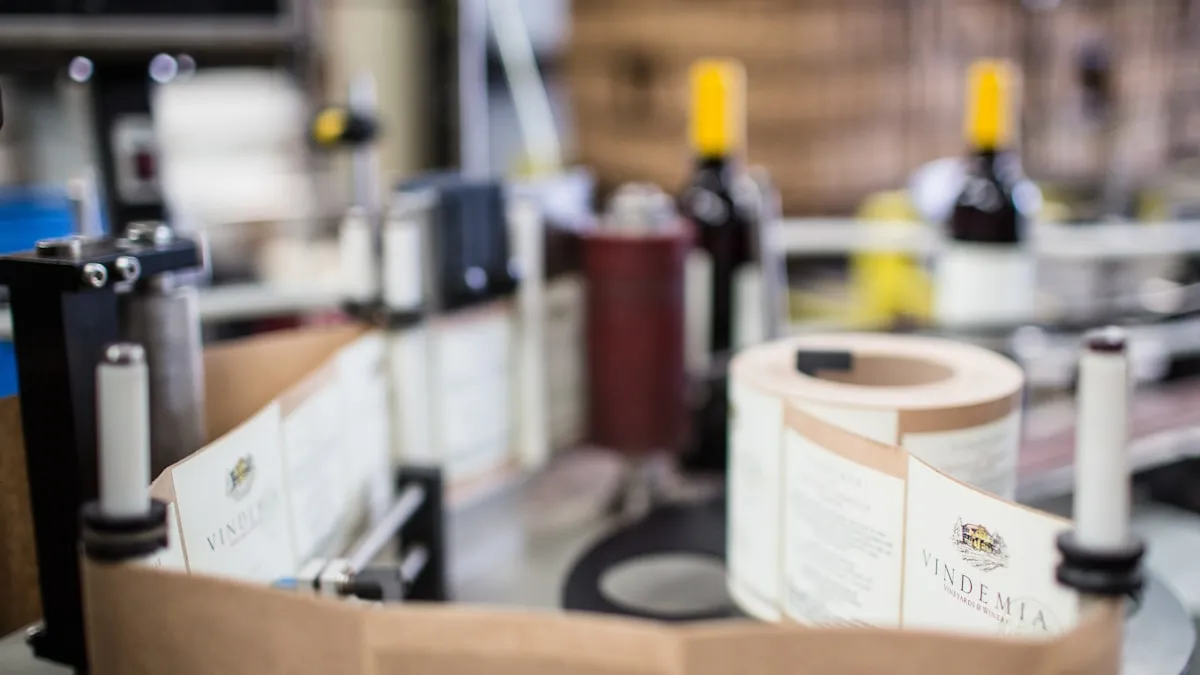
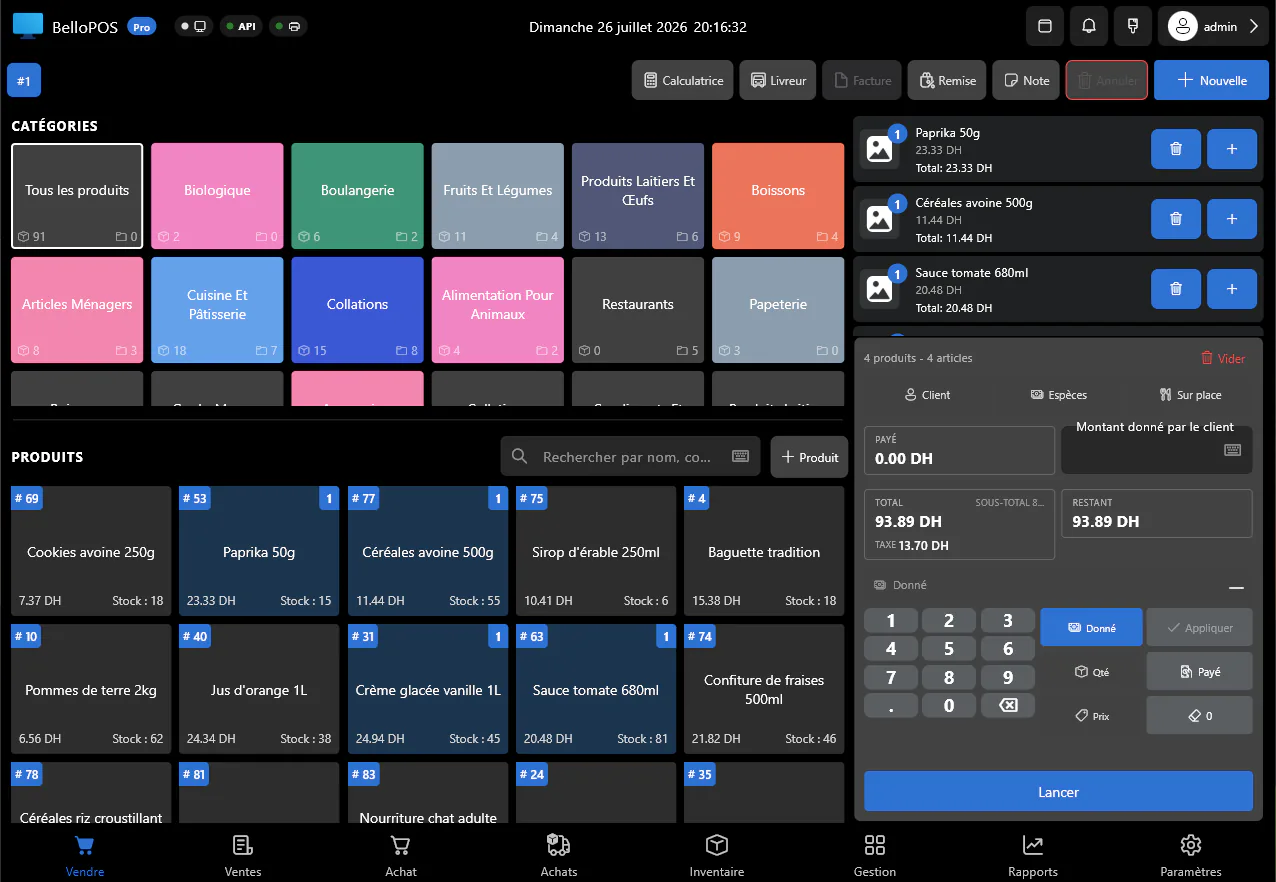
A barcode is the difference between a checkout that moves and a checkout that types. BelloPOS works with any USB or Bluetooth barcode scanner with no driver hunt and no configuration: scanners present themselves to Windows as a keyboard, so the moment one is plugged in a scan drops the right product, price and tax into the basket.
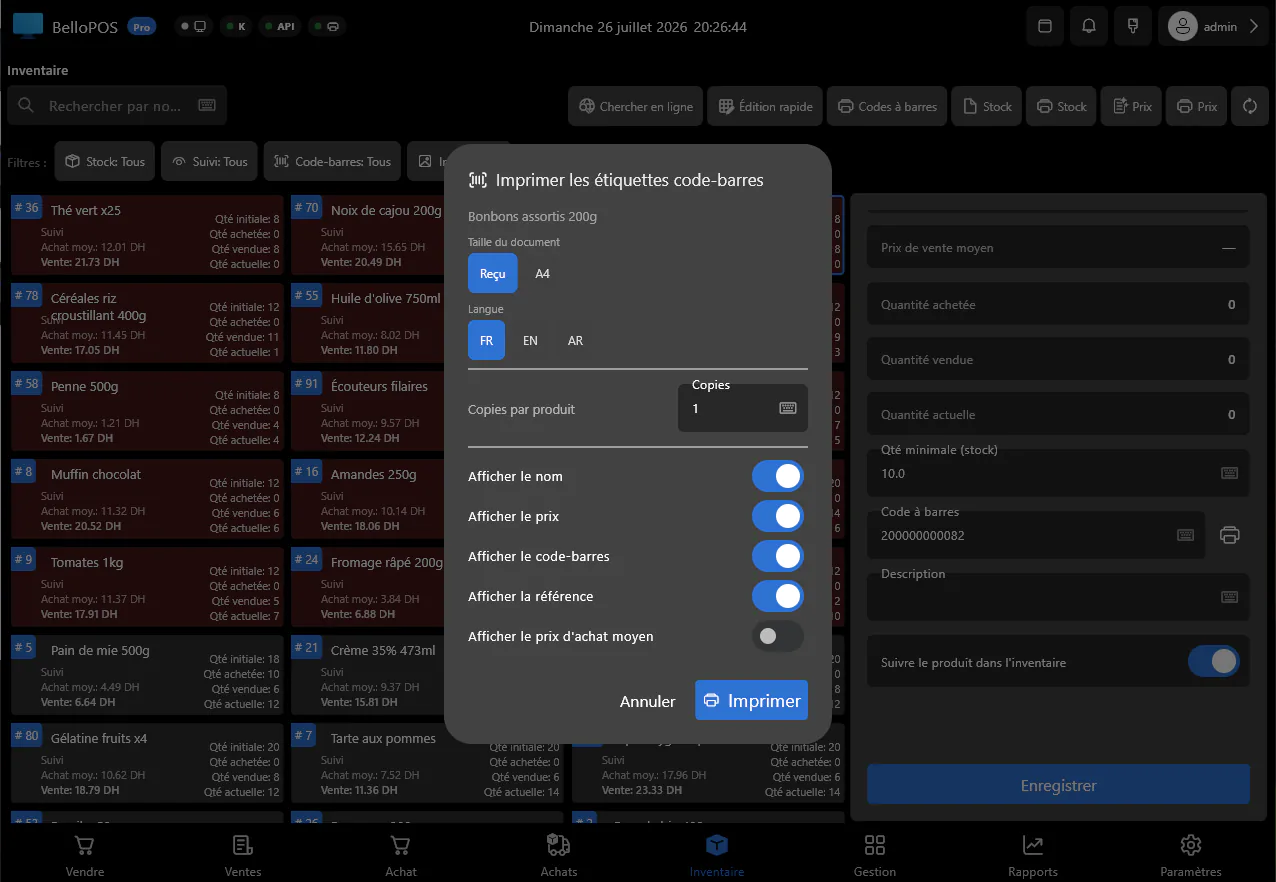
The other half of the job is the products that arrive without a code: loose goods, repacked items, your own production. BelloPOS generates a barcode for those and prints the labels from the app, several to a sheet, in the label size you already buy. The same code then works at the till, on a stock take and when you receive the next delivery.
What it does
Works with any scanner
USB and Bluetooth scanners are recognised as soon as they are connected. No driver, no pairing routine, no particular model to buy.
Generate the missing codes
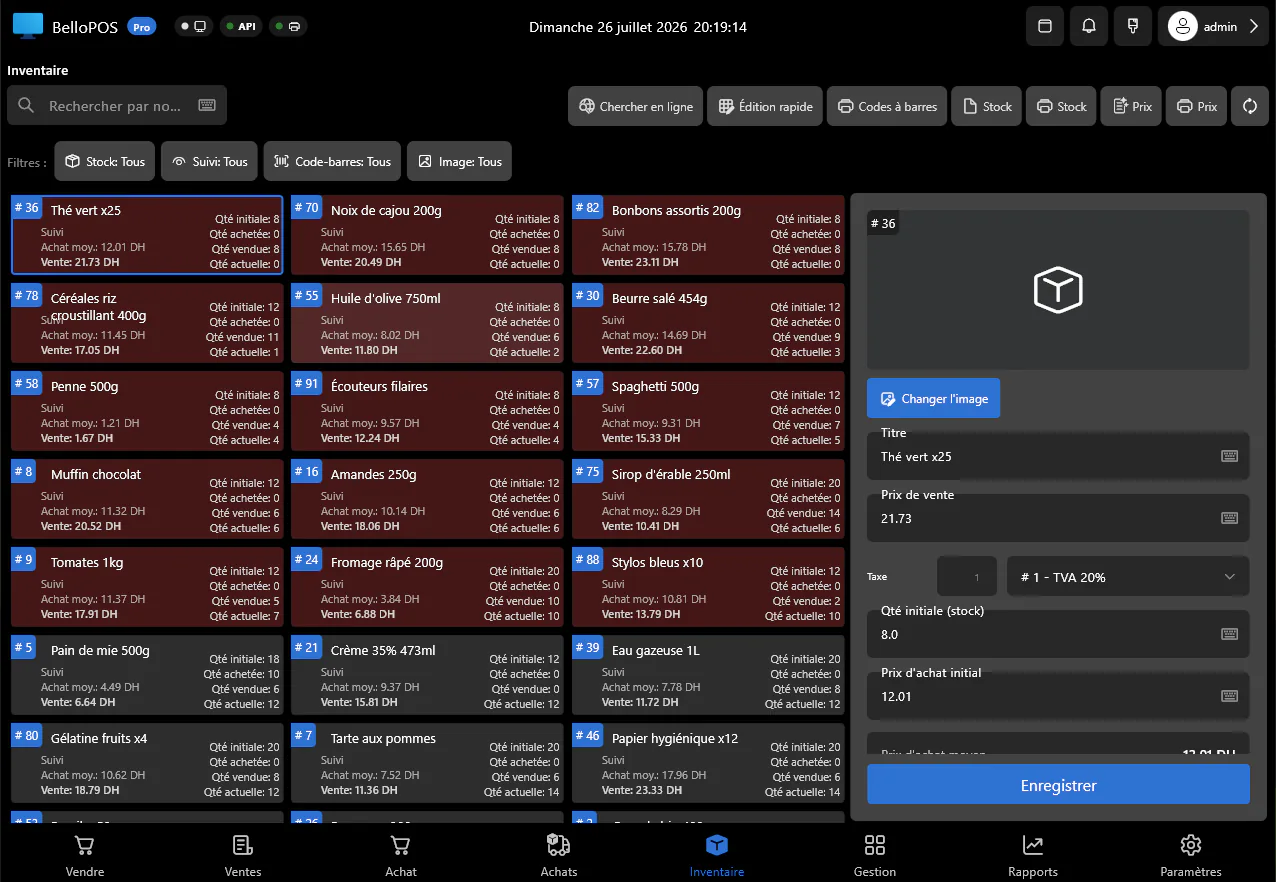
Products that came without a barcode get one from the app, so every line in your catalogue is scannable rather than half of them.
Print your own labels
Lay out labels with the name, price and code, print several to a sheet on an ordinary printer or a label printer, and relabel a whole delivery in one pass.
Scan everywhere, not just at the till
The same code speeds up receiving a delivery, running a stock take and looking a product up, so the labelling work pays for itself more than once.
See it in the app
Real screens from BelloPOS on Windows.
How it works, step by step
- 1Plug in a USB or Bluetooth scanner; Windows sees it as a keyboard.
- 2Scan an existing barcode into the product record, or let the app generate one.
- 3Print the labels you need, several to a sheet, in your own label size.
- 4Scan at the till: the product, its price and its tax land in the basket.
- 5Scan again to receive deliveries and to run stock takes.
Questions merchants ask
Which barcode scanners are supported?
Effectively all of them. USB and Bluetooth scanners act as keyboards, so they work as soon as they are plugged in, with no driver and no setup inside BelloPOS.
Can I print barcodes for products that do not have one?
Yes. The app generates a code for the product and prints labels in the size you use, several to a sheet, on a normal printer or a dedicated label printer.
Does barcode support cost extra?
No. Scanning, generating codes and printing labels are all in the free Lite licence.
Other BelloPOS features
Every module, one page each.
Touchscreen POS software
The till screen your staff will actually use: one tap per item, one second per payment, and nothing waiting on a connection.
Stock management software
Every sale and every delivery moves the count, so what the screen says is what is actually on the shelf.
Invoicing and receipt software
A thermal ticket for the queue, a proper PDF invoice for the customer who asks, both out of the same sale.
Customer management software
Know who is in front of you, what they bought last time, and what they still owe, before you serve them.
Purchasing and supplier software
Order it, receive it, and let the count and the cost price update themselves.
Sales reporting software
What sold, what earned, who sold it and what to order next, without exporting anything to a spreadsheet.
Restaurant POS software
The floor, the pass and the bill on one system, still running when the line goes down mid service.
Offline POS software
Not an offline mode that catches up later: the software simply runs where your shop is.
Multi-till POS software
One PC holds the data, the other terminals talk to it over your own network, and nothing leaves the building.
Staff accounts and permissions
Everyone gets their own login, each role gets exactly the buttons it should have, and the history says who did what.
Barcode scanning and label printing
Get started today and bring all your commerce into one platform.