Receipts and invoices, with your details on them
A thermal ticket for the queue, a proper PDF invoice for the customer who asks, both out of the same sale.
Free download for Windows · version 2.1.12 · 33 MB · works offline
Every sale ends in a piece of paper, and in Morocco that paper has to carry your details: your shop name, your address, your ICE, and the tax lines that make it a document rather than a note. BelloPOS prints the ticket on a 58 mm or 80 mm thermal printer with a header you write yourself, and prices it with the VAT rates you set per product.
Some customers need more than a ticket. The same sale can be issued as a numbered invoice, exported as a PDF and printed on A4 for a company that needs it for its own books. Receipts are part of the free Lite licence; invoice export is unlocked with a BelloPOS Go licence, bought once with no subscription behind it.
What it does
Your header, not ours
Shop name, address, phone, ICE and a closing line of your choosing, printed on every ticket. The free plan shows a small BelloPOS mention, which a Go licence removes.
VAT that adds up
Set a rate per product, mix rates in one basket, and let the ticket show the tax breakdown instead of a single unexplained total.
PDF invoices for business customers
Turn a sale into a numbered invoice with the customer's details on it, export it as a PDF and email or print it on A4.
Reprint anything
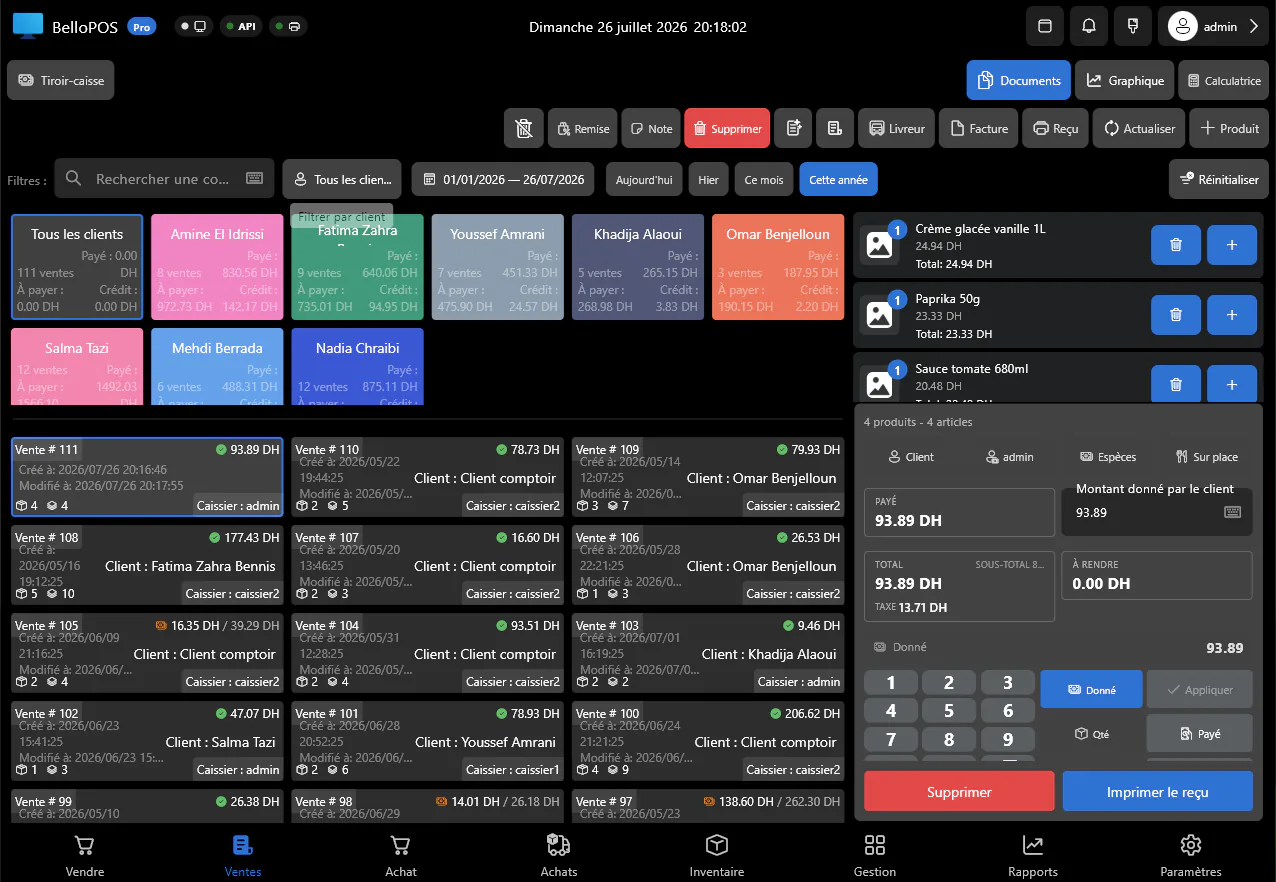
Every sale stays in the history with its ticket, so a reprint for a return or an accountant is a search rather than an argument.
See it in the app
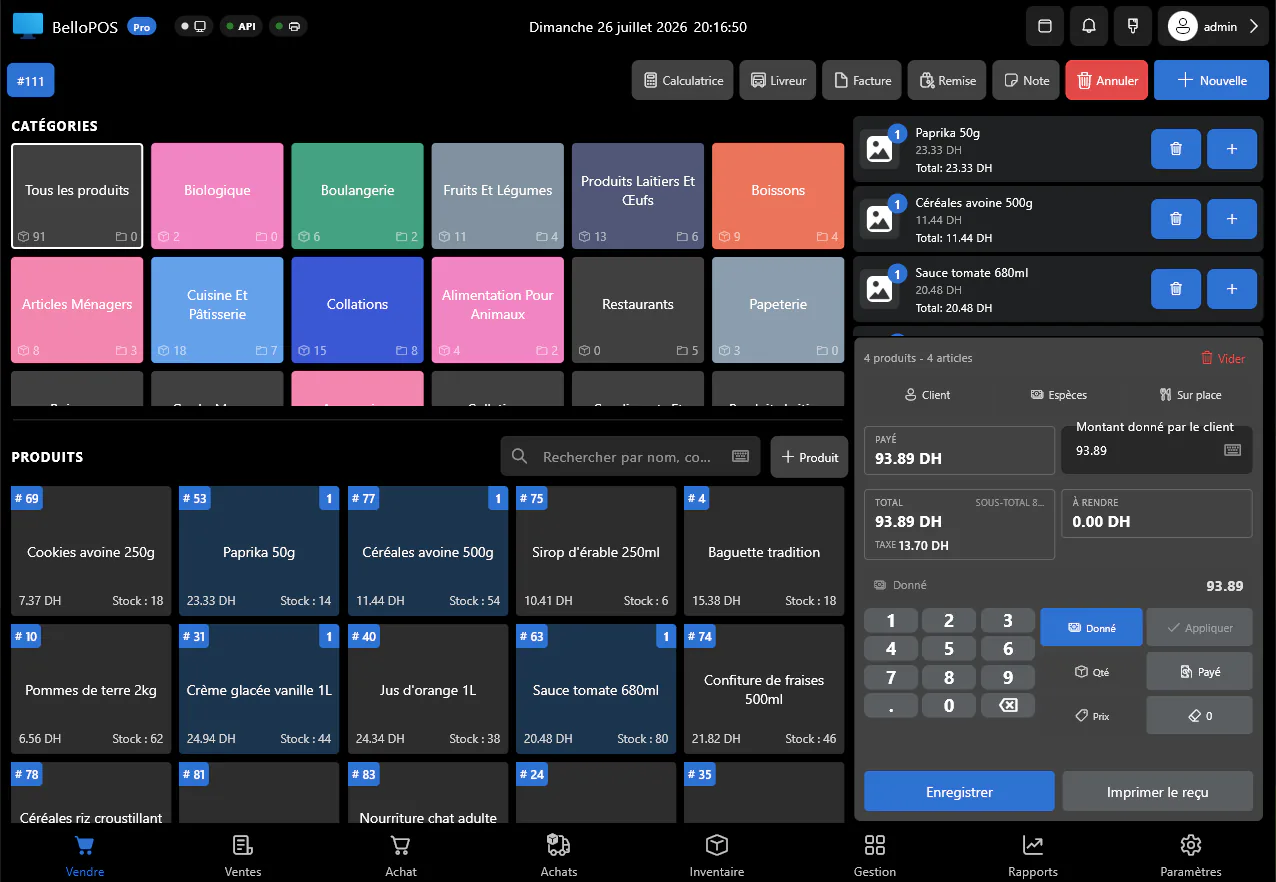
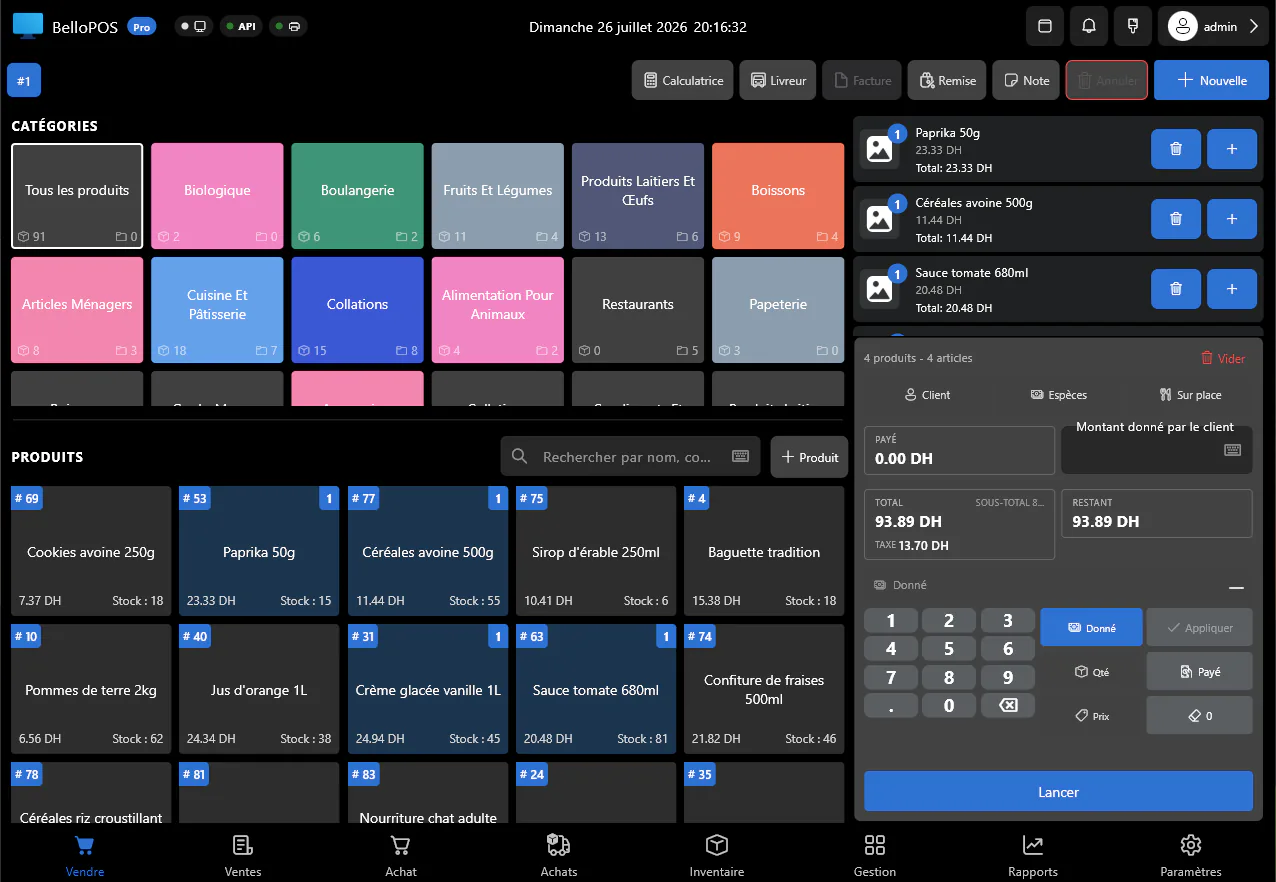
Real screens from BelloPOS on Windows.
How it works, step by step
- 1Set your shop details, ICE and ticket footer once, in settings.
- 2Give each product its VAT rate.
- 3Sell as usual; the ticket prints with the header and the tax breakdown.
- 4For a business customer, issue the sale as a numbered invoice.
- 5Export the invoice as a PDF, or print it on A4, and find it again in the history.
Questions merchants ask
Can I put my ICE on the receipt?
Yes. The ticket header is yours to write: shop name, address, phone, ICE and any closing line, printed on every receipt.
Which printers work?
58 mm and 80 mm thermal receipt printers, and any printer Windows can already print to, including an ordinary A4 printer for invoices.
Is invoicing in the free plan?
Receipts are, including your own header and the tax lines. Numbered PDF invoice export comes with a BelloPOS Go licence, bought once for life.
Other BelloPOS features
Every module, one page each.
Touchscreen POS software
The till screen your staff will actually use: one tap per item, one second per payment, and nothing waiting on a connection.
Stock management software
Every sale and every delivery moves the count, so what the screen says is what is actually on the shelf.
Barcode and label software
Any scanner works out of the box, and anything without a barcode gets one you print yourself.
Customer management software
Know who is in front of you, what they bought last time, and what they still owe, before you serve them.
Purchasing and supplier software
Order it, receive it, and let the count and the cost price update themselves.
Sales reporting software
What sold, what earned, who sold it and what to order next, without exporting anything to a spreadsheet.
Restaurant POS software
The floor, the pass and the bill on one system, still running when the line goes down mid service.
Offline POS software
Not an offline mode that catches up later: the software simply runs where your shop is.
Multi-till POS software
One PC holds the data, the other terminals talk to it over your own network, and nothing leaves the building.
Staff accounts and permissions
Everyone gets their own login, each role gets exactly the buttons it should have, and the history says who did what.
Receipts and invoices, with your details on them
Get started today and bring all your commerce into one platform.